Square Root Symbol (√): How to Copy, Paste & Type on Any Device
Introduction
The square root symbol (√) is one of the most important mathematical symbols used in equations, calculations, and academic work. Whether you’re a student solving algebra problems, a teacher creating worksheets, an engineer writing technical documents, or someone working with spreadsheets, knowing how to type and use the square root symbol is essential.
This comprehensive guide explains everything you need to know about the square root symbol – its meaning, how to copy and paste it, keyboard shortcuts for every device (Windows, Mac, iPhone), and how to insert it in Word, Excel, and other software.
The symbol √ represents the mathematical operation of finding the root of a number. For example, √9 = 3 because 3 × 3 = 9. It’s used daily in mathematics, physics, engineering, and countless other fields.
What is the Square Root Symbol?
Understanding the Square Root Symbol (√)
The square root symbol, also called the radical symbol or radical sign, is represented by the character √. It’s a mathematical notation used to indicate that you need to find the number which, when multiplied by itself, equals the number under the symbol.
Basic Definition
The square root of a number is a value that, when multiplied by itself, gives the original number. For example:
- √9 = 3 (because 3 × 3 = 9)
- √16 = 4 (because 4 × 4 = 16)
- √25 = 5 (because 5 × 5 = 25)
Symbol Appearance
The square root symbol looks like a checkmark with a horizontal line extending to the right. The number you want to find the root of goes under this horizontal line, which is called the radicand.
Mathematical Notation
In mathematical notation, the square root symbol is written as: √x, where x is the number under the radical. You can also write it using exponent notation as: x^(1/2), which means the same thing.
History of the Symbol
The square root symbol was first used by German mathematician Christoph Rudolff in 1525 in his work “Coss.” The symbol resembles the letter “r” (for “radix,” which means root in Latin), and this symbol has been used consistently in mathematics ever since.
Why It’s Important
Understanding the square root symbol is crucial for:
- Solving quadratic equations
- Calculating distances (Pythagorean theorem)
- Working with right triangles
- Engineering and physics calculations
- Scientific research and analysis
- Academic coursework in mathematics
How to Copy and Paste the Square Root Symbol
Easiest Method: Copy-Paste
The simplest way to get the square root symbol is to copy and paste it directly. No special software or keyboard skills needed.
Step 1: Copy the Symbol
Copy this symbol: √
Step 2: Paste in Your Document
Use the keyboard shortcut to paste:
- Windows: Ctrl + V
- Mac: Cmd + V
- iPhone/Android: Long press and select Paste
This method works in:
- Google Docs
- Microsoft Word
- Excel
- Social media
- Text messages
- Any text field
Copy and Paste Examples
You can copy the square root symbol and use it anywhere:
- √9 = 3
- √x + 5 = 10
- Distance = √((x₂−x₁)² + (y₂−y₁)²)
Advantages of Copy-Paste
- Works on all devices (Windows, Mac, iPhone, Android)
- No special keyboard knowledge required
- Fastest method for most users
- Copy once, paste multiple times
- No technical barriers
How to Type the Square Root Symbol on Windows
Method 1: Alt Code (Fastest)
Windows computers have a simple keyboard shortcut using Alt codes.
Steps:
- Hold down the Alt key on your keyboard
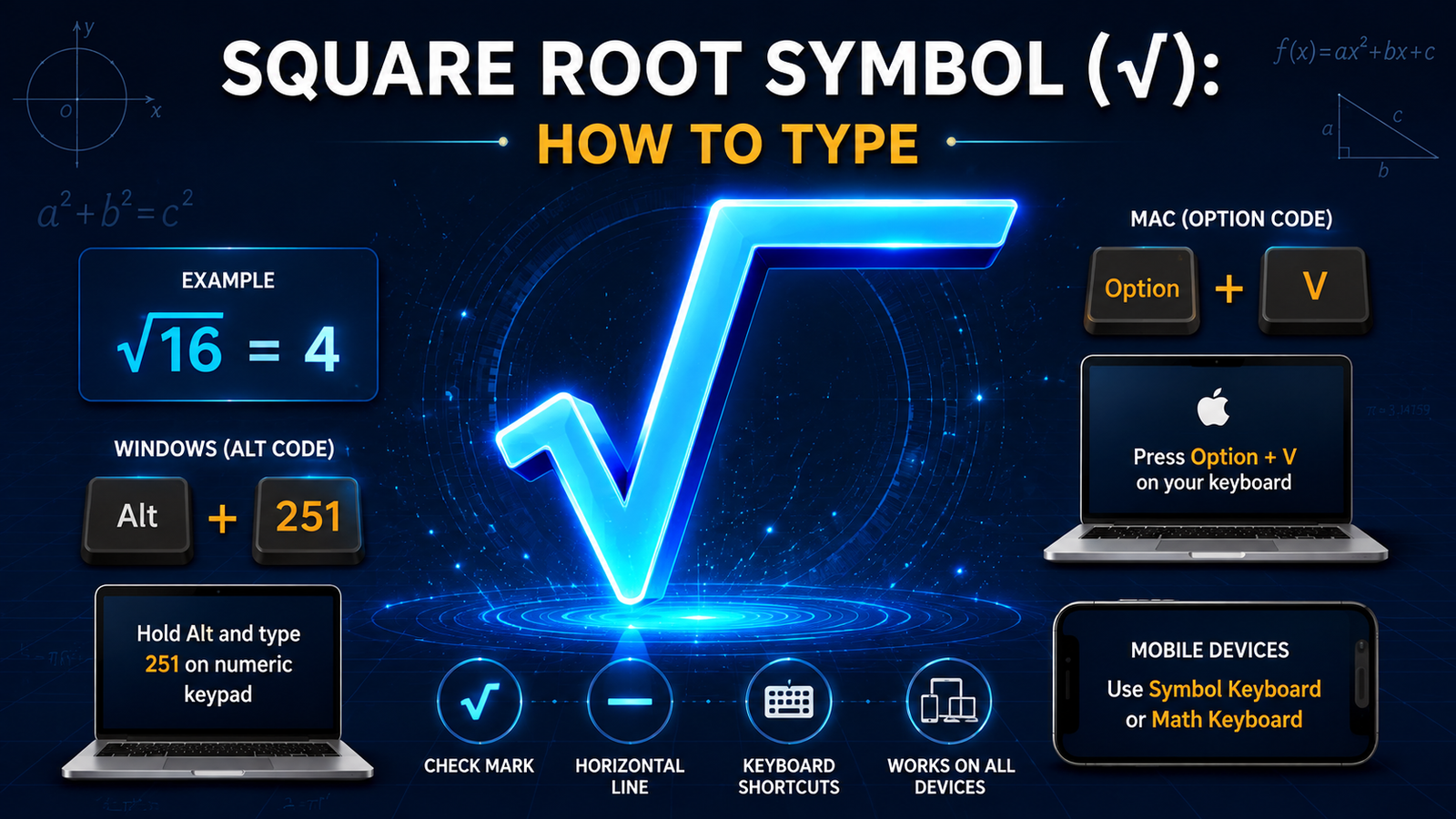
- Type 251 on the numeric keypad (not the regular number row)
- Release the Alt key
- The square root symbol √ will appear
Important: This only works with the numeric keypad on the right side of your keyboard, not the numbers at the top.
Example: Alt + 251 = √
Method 2: Character Map
If Alt codes don’t work on your keyboard:
- Open the Start menu and search for “Character Map”
- Click on Character Map to open it
- In the search box at the bottom, type “radical” or “square root”
- The √ symbol will appear in the list
- Double-click on it to select it
- Click Copy button
- Paste it (Ctrl + V) in your document
Method 3: Microsoft Word
For Word Users:
- Click on Insert menu
- Select “Special Characters” or “Symbol”
- Search for “radical” or “square root”
- Click on √
- Click Insert
- The symbol appears in your document
Method 4: Google Docs
- Click Insert menu
- Select “Special characters”
- Search for “radical” or type √
- Click on the symbol
- It inserts into your document
Troubleshooting Alt Codes
If Alt + 251 isn’t working:
- Make sure Num Lock is ON (you should see a light on your keyboard)
- Use the numeric keypad on the right, not the top number row
- Some laptop keyboards require Fn + Alt + 251
- Try copying and pasting instead
How to Type the Square Root Symbol on Mac
Method 1: Keyboard Shortcut (Easiest)
Mac has a direct keyboard combination:
- Hold down Option key
- Press V
- Release both keys
- The square root symbol √ appears
Shortcut: Option + V = √
Method 2: Character Viewer
If the keyboard shortcut doesn’t work:
- Press Control + Command + Space (or Cmd + Ctrl + Space)
- The Character Viewer window opens
- Search for “radical” or “square root”
- Double-click on √
- The symbol inserts in your document
Method 3: Mac System Preferences
- Go to System Preferences
- Select Keyboard
- Go to Input Sources tab
- Add “Unicode Hex Input” if not already there
- Switch to Unicode Hex Input
- Type 221a (the Unicode code for square root)
- The symbol appears
Method 4: Microsoft Word for Mac
- Click Insert menu
- Select Symbol
- Search for “square root”
- Click √
- Click Insert
Troubleshooting Mac Keyboard Shortcuts
- If Option + V doesn’t work, try Ctrl + Option + V
- Make sure you’re holding Option, not Alt
- Some Mac keyboards use different layouts
- Try the Character Viewer method instead
How to Type the Square Root Symbol on iPhone
Method 1: iOS Keyboard (Copy-Paste)
The simplest method for iPhone:
- Copy the symbol: √
- Long press in the text field where you need it
- Select Paste
- The symbol appears
Method 2: Special Characters Keyboard
- Open any text field
- Tap the 123 button to show numbers
- Tap and hold on various symbols (like =, +, −) to see special character options
- Look for the radical/square root symbol
- Tap it to insert
Method 3: Siri Dictation
- Tap the microphone icon on your keyboard
- Say “square root symbol” or “radical symbol”
- Some iPhones will insert it
- If not, use copy-paste method
Method 4: Search & Copy
- Go to Google search
- Search “square root symbol copy”
- Copy the symbol from the search results
- Paste in your document
How to Type the Square Root Symbol in Microsoft Word
Method 1: Insert Special Character
- Place your cursor where you want the symbol
- Click Insert menu at the top
- Click Symbol (or Special Characters on some versions)
- Search for “radical” or “square root”
- Click on √
- Click Insert button
- Click Close
The symbol now appears in your document.
Method 2: Alt Code (Windows)
- Place cursor in your document
- Hold Alt key
- Type 251 on numeric keypad
- Release Alt
- √ appears
Method 3: Keyboard Shortcut (Mac)
- Place cursor in your document
- Press Option + V
- √ appears
Method 4: Copy and Paste
- Copy this symbol: √
- In your Word document, place cursor where needed
- Press Ctrl + V (Windows) or Cmd + V (Mac)
- Symbol appears
Method 5: Math AutoCorrect
In Word, you can enable Math AutoCorrect:
- Go to File > Options > Proofing > AutoCorrect Options
- Search for Math AutoCorrect
- Enable it
- In your document, type: \sqrt
- Press Space
- Word converts it to √
How to Type the Square Root Symbol in Excel
Method 1: Insert Function (Best for Calculations)
- Click on the cell where you want the symbol
- Click Insert menu
- Click Symbol
- Search for “radical” or “square root”
- Click √
- Click Insert
- Click Close
Method 2: Alt Code
- Click on the cell
- Hold Alt key
- Type 251 on numeric keypad
- Release Alt
- √ appears in the cell
Method 3: Copy and Paste
- Copy the symbol: √
- Click on the Excel cell
- Press Ctrl + V
- The symbol appears
Method 4: Using SQRT Function
For actual square root calculations in Excel:
- Click on a cell
- Type the formula: =SQRT(9)
- Press Enter
- Excel displays: 3
This calculates the square root mathematically rather than just inserting the symbol.
Method 5: Combining Symbol with Text
To show the symbol alongside text:
- Type in cell: =CONCATENATE(“√”, “16 = 4”)
- Press Enter
- Displays: √16 = 4
Square Root Symbol Keyboard Shortcut Reference
Quick Reference Table
Windows:
- Alt + 251 = √
Mac:
- Option + V = √
iPhone:
- Copy and Paste √
Google Docs:
- Insert > Special Characters > search “radical”
Microsoft Word:
- Insert > Symbol > search “square root”
Excel:
- Insert > Symbol > search “square root”
HTML/Web:
- √ or √
LaTeX:
- \sqrt{x}
Unicode:
- U+221A
Square Root Symbol in Mathematical Equations
Common Examples
Basic Square Roots:
- √4 = 2
- √9 = 3
- √16 = 4
- √25 = 5
- √100 = 10
Algebraic Equations:
- √x = 5 (x = 25)
- 2√x + 3 = 11
- √(x + 4) = 6
Pythagorean Theorem:
- c = √(a² + b²)
- If a = 3 and b = 4, then c = √(9 + 16) = √25 = 5
Distance Formula:
- Distance = √((x₂−x₁)² + (y₂−y₁)²)
Quadratic Formula:
- x = (−b ± √(b² − 4ac)) / 2a
Standard Deviation:
- σ = √(Σ(x − μ)² / N)
Square Root Symbol Variants
Square Root of Specific Numbers
- √2 ≈ 1.414 (used in geometry)
- √3 ≈ 1.732 (appears in trigonometry)
- √5 ≈ 2.236 (related to golden ratio)
Cube Root and Higher
If you need roots other than square:
- Cube root: ∛x (Alt + 8731 on Windows)
- Fourth root: ∜x
Long Division Style
Sometimes square roots are written with a long bar:
- The bar extends over the entire expression under the radical
FAQ About Square Root Symbol
What is the square root symbol called?
The square root symbol is called the radical symbol, radical sign, or radical. The √ character itself is sometimes called “the radical” and the number under it is called the radicand.
How do I type the square root symbol on a keyboard?
On Windows, use Alt + 251. On Mac, use Option + V. On other devices, copy and paste the symbol √. In Microsoft Word or Google Docs, use Insert > Symbol and search for “square root.”
What does the square root symbol mean?
The square root symbol (√) means you need to find the number that, when multiplied by itself, equals the number under the symbol. For example, √16 = 4 because 4 × 4 = 16.
Can I use the square root symbol in Excel?
Yes, you can insert the square root symbol using Alt + 251 (Windows) or by using Insert > Symbol in Excel. You can also use the SQRT function to calculate square roots: =SQRT(25) returns 5.
What is the Unicode for square root symbol?
The Unicode number for the square root symbol is U+221A. You can use this code in HTML (√) or web applications.
How do I calculate square root in my calculator?
Most calculators have a √ button or a second function (Shift + √). Enter the number and press the square root button to see the result. For example: 25 √ = 5.
What devices support the square root symbol?
All modern devices support the square root symbol: computers (Windows, Mac, Linux), phones (iPhone, Android), tablets, and web browsers. Copy-paste works universally on all devices.
Is there a keyboard shortcut that works on all devices?
Copy and paste is the only method that works on all devices consistently. Specific keyboard shortcuts vary by device (Alt + 251 for Windows, Option + V for Mac, etc.).
How do I type the square root symbol in Google Docs?
In Google Docs, click Insert > Special characters, then search for “radical” or “square root.” Click on the √ symbol, and it inserts into your document.
Can I use voice to add the square root symbol?
Voice typing can sometimes recognize “square root symbol” if you use Siri (Apple) or Google Assistant, but copy-paste is more reliable for inserting the symbol.
Related Symbols
Learn more about other important math symbols:
- Pi Symbol (π): Complete Guide to Copy, Paste & Type
- Infinity Symbol (∞): Meaning & How to Type
- Aesthetic Symbol Copy
Conclusion
The square root symbol (√) is an essential mathematical symbol that appears in equations, calculations, and academic work across all fields of study and professional applications. Whether you need to type it for homework, create educational materials, work with spreadsheets, or write technical documents, you now know multiple methods to access this symbol on any device.
The easiest method for most people is copying and pasting the symbol (√). For those who type it frequently, learning your device’s keyboard shortcut (Alt + 251 for Windows or Option + V for Mac) can save time and improve efficiency. In software like Microsoft Word and Excel, the Insert > Symbol menu provides an intuitive way to access the square root symbol whenever you need it.
Remember that understanding what the square root symbol means mathematically is just as important as knowing how to type it. The symbol represents finding the number that, when multiplied by itself, equals the number under the radical – a fundamental concept in mathematics used in algebra, geometry, calculus, physics, engineering, and countless other fields.
Now you’re equipped with all the knowledge you need to work confidently with the square root symbol on any device and in any application!